Aspect ratios
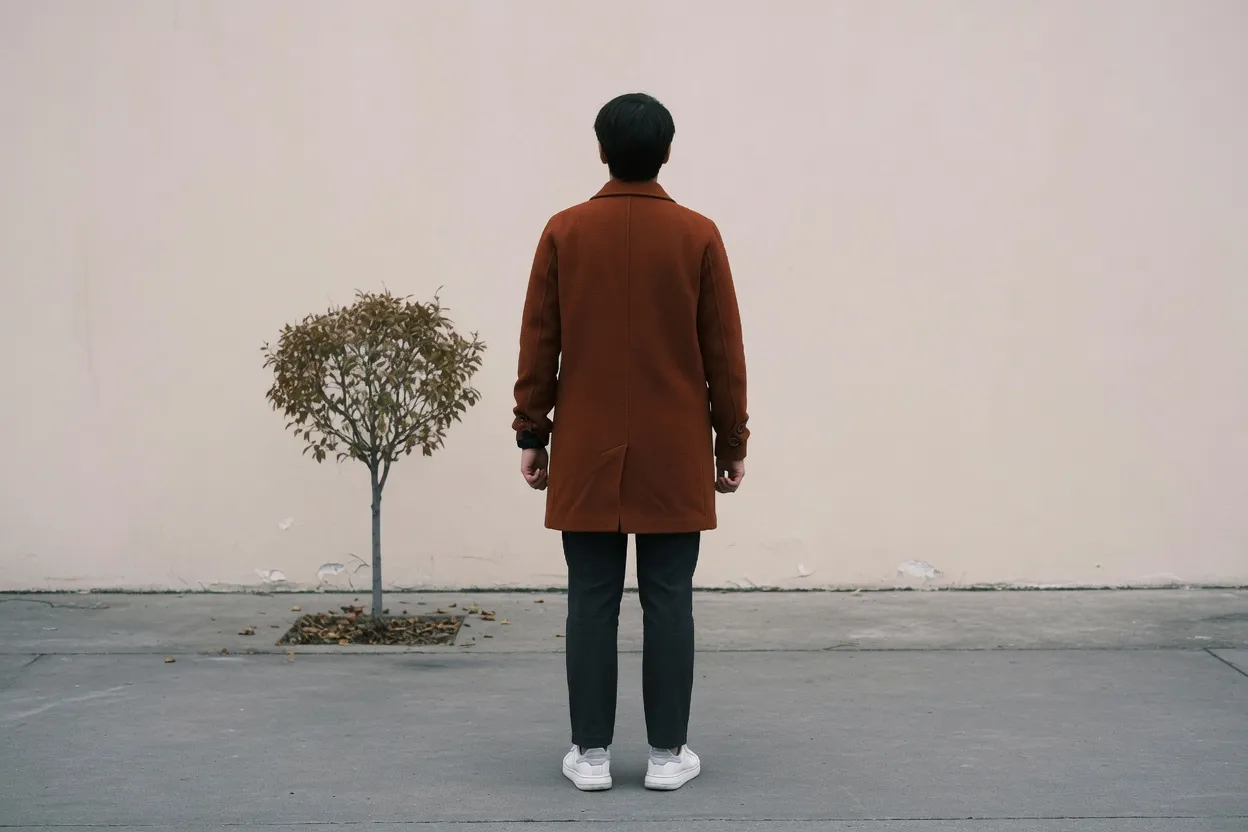
The photograph above is the file before a ratio lock. It is a 3:2 still of one standing person. Each block below pulls that same photograph until it fills the named ratio. Stretching changes the person's shape. It does not cut the sides away, and it does not paint new scenery. Lock the ratio in the tool, then set the pixel size. A ratio never types a width.
1:1 square posts
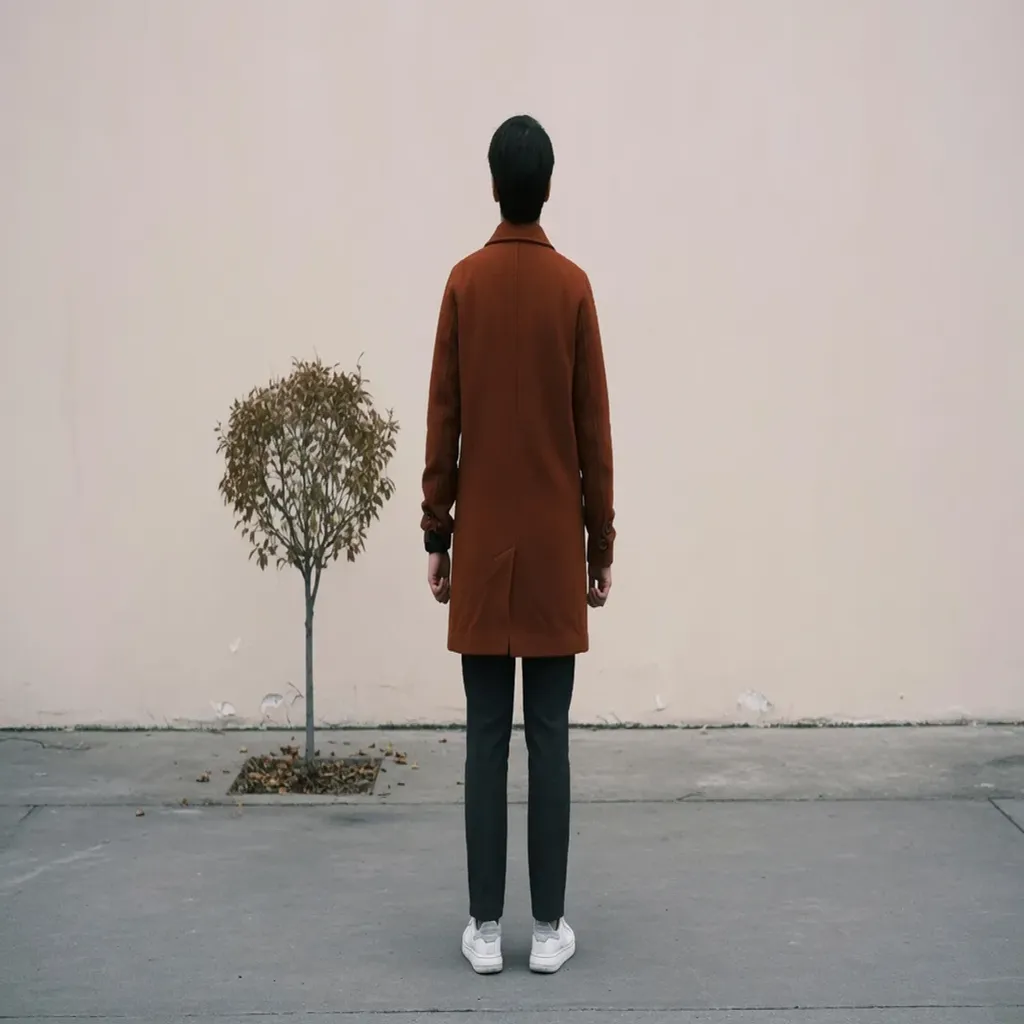
Instagram’s square post and Facebook’s square post and ads are both 1080×1080. That is a real 1:1 file. A profile picture is square too, and it is a different file: the YouTube profile frame in this site’s templates is 800×800. Both boxes share 1:1. They do not share a pixel size.
A 9:16 story still, 1080×1920, looks wrong when it is stretched into the square. The height is crushed relative to the width, so a standing person gets shorter and wider. The bitmap is scaled on both axes. Nothing is sliced off the top or the bottom.
Locking 1:1 only freezes width ÷ height. It does not fill in 1080. Type the width the brief names after the lock. 1080×1080, 800×800, and a tiny avatar are three files of one ratio.
Lock 1:1 in the tool4:5 portrait posts
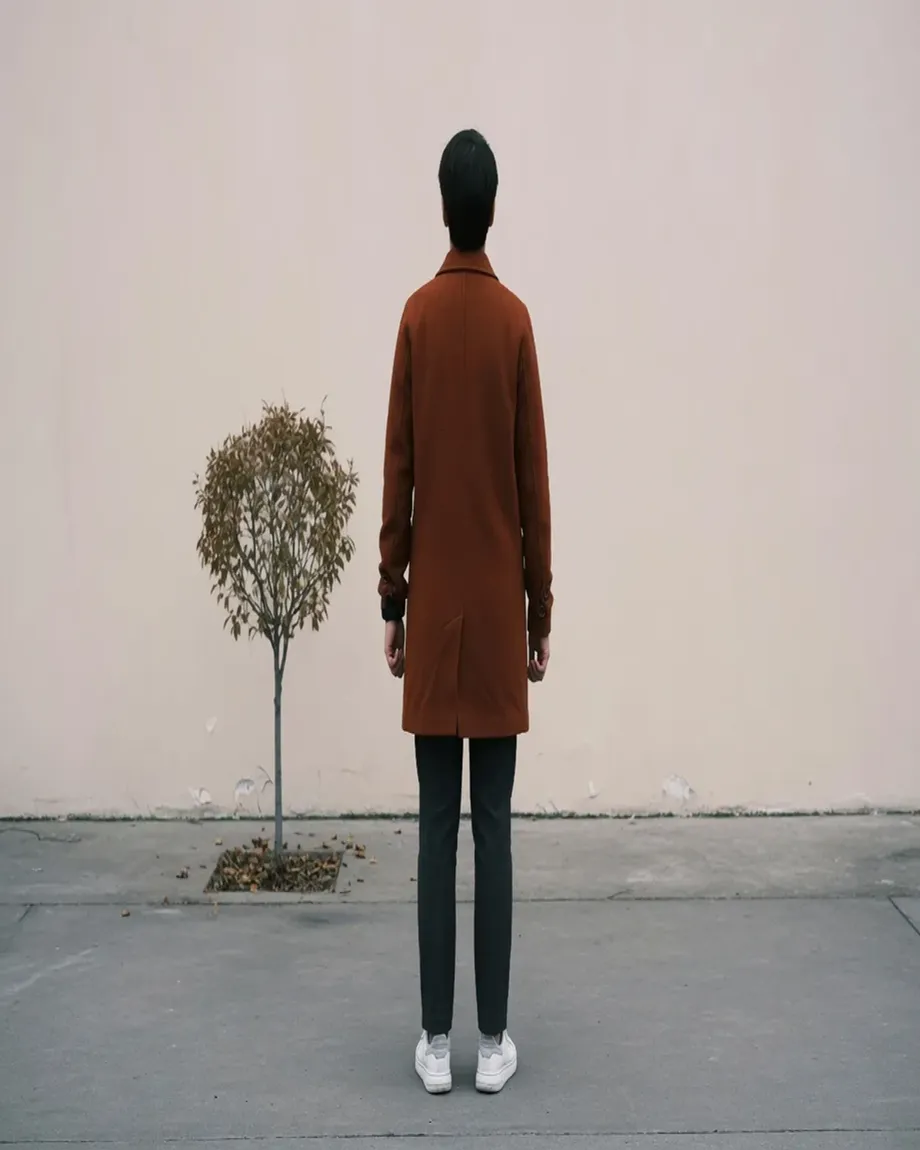
The portrait post on Instagram and the portrait post on Facebook are the same pixel box, 1080×1350. Divide those sides and you get 4:5. That frame is what a tall feed post uses when the brief says portrait rather than square or landscape.
A 16:9 thumbnail is much wider than 4:5. Stretching it into 1080×1350 pulls the picture vertically. The coat gets long. The tool fills the frame by scaling. It does not crop the left and right of the landscape and leave the middle untouched.
1080×1350 is 4:5. It is not 2:3, and it is not 3:4. A 1000×1500 pin and a 3:4 camera still are close enough that people drop them into this post and then wonder why the subject looks slightly pulled. Lock 4:5 only when the destination really is 1080×1350.
Lock 4:5 in the tool9:16 stories and short video
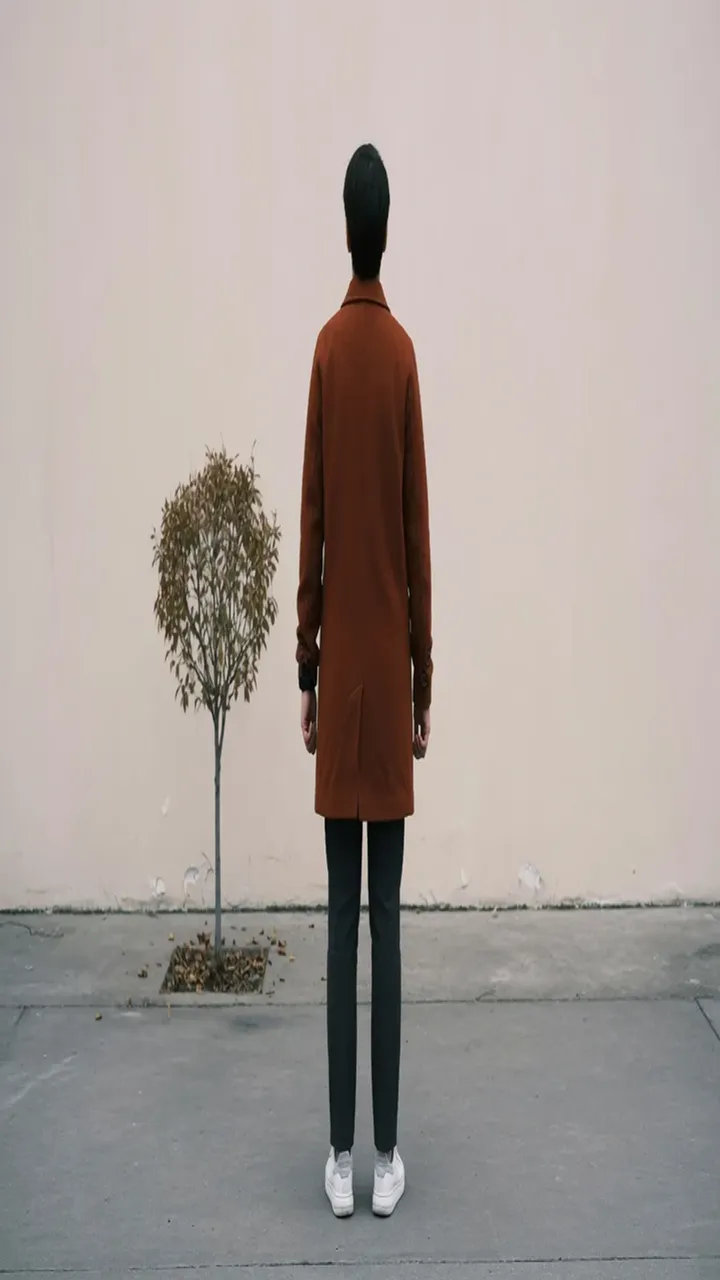
Instagram Story and Reels use 1080×1920. TikTok’s video frame in this site’s templates is the same 1080×1920. Both are 9:16. YouTube Shorts uses that pixel box on a different screen.
A 16:9 landscape pulled into 9:16 is the harsh case. The person is stretched tall and thin because the height grows much faster than the width. Filling the vertical frame this way keeps every original pixel and distorts all of them. Cropping a vertical window out of the landscape is a different edit.
Locking 9:16 does not produce Snapchat’s geofilter. That template is 1080×2340, taller than 9:16. Story, Reel, and TikTok video can share 1080×1920 and still be the wrong file for the geofilter. Set 1080 and 1920 after the lock when the slot is the story frame.
Lock 9:16 in the tool16:9 thumbnails and covers
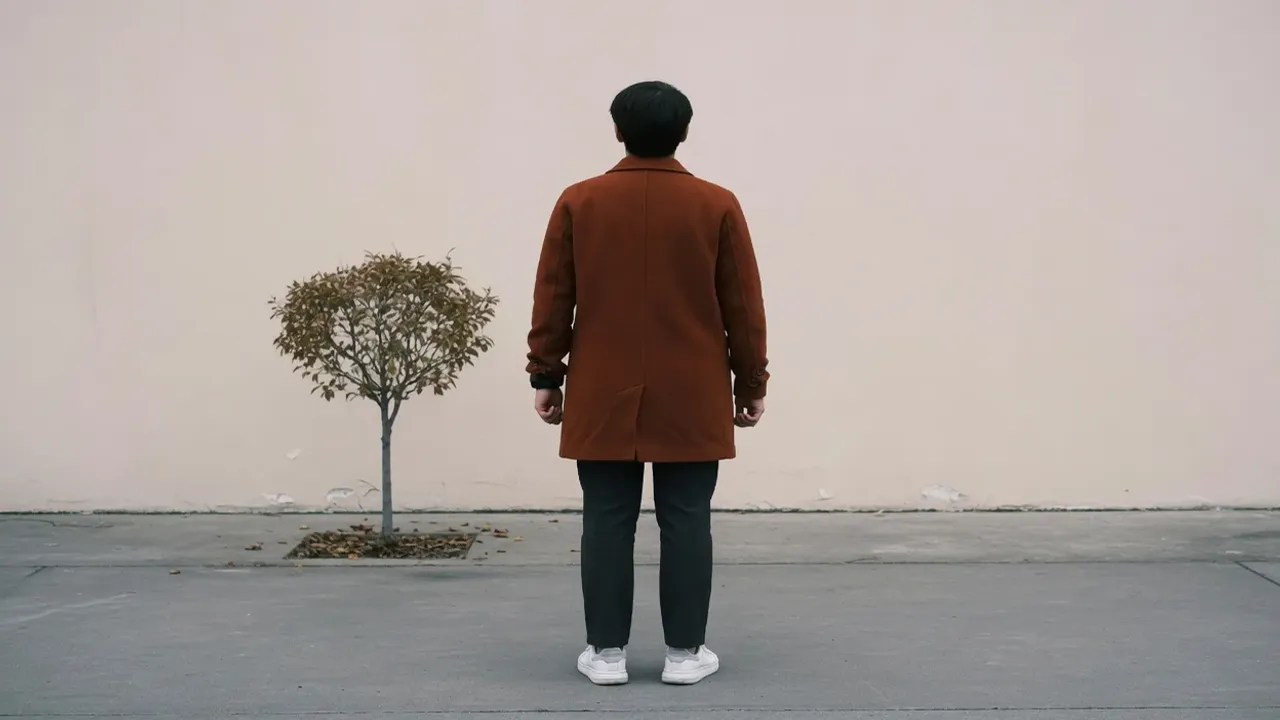
A YouTube thumbnail and a LinkedIn article cover are both 1280×720 in this site’s templates. That is 16:9. A 1920×1080 video still is the same ratio at another pixel size. The ratio lock gets you the shape. The width field gets you the file the slot asked for.
A 9:16 story still stretched into 16:9 goes the other way: the person becomes short and wide. Horizontal scale outruns vertical scale. The whole frame fills. The sides are not new pixels invented beside the original photo.
The YouTube channel banner file in these templates is 2560×1440. That is also 16:9, and it is not the thumbnail. Locking 16:9 leaves the current pixel size alone. 1280×720 and 2560×1440 are two exports.
Lock 16:9 in the tool4:3 classic frames
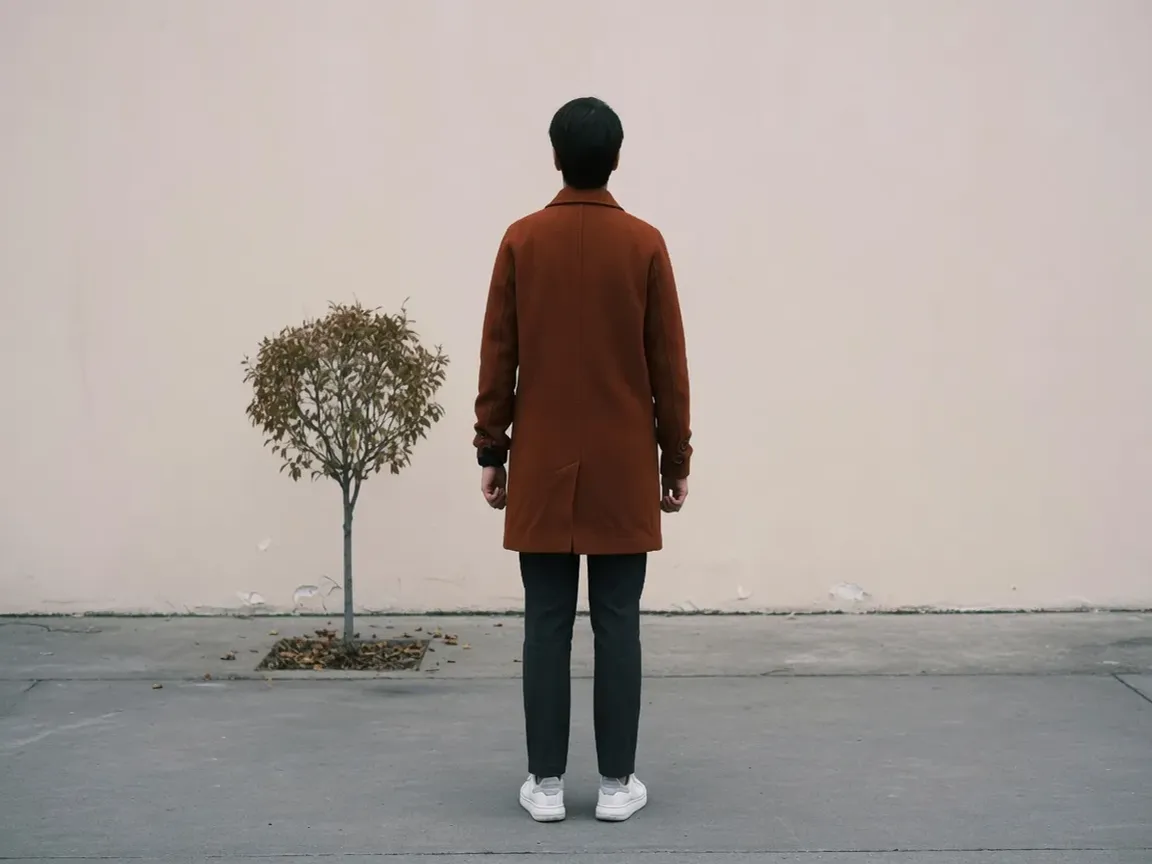
The common-size template 800×600 is 4:3. The Tumblr dashboard thumbnail already described on this site is 540×405, and that is 4:3 as well. Same ratio, different files. 4:3 is wider than a square and shorter than 16:9.
Stretching a 9:16 story into 4:3 squashes a tall picture into a classic landscape. The person gets much shorter and wider than they were. A 16:9 still moved into 4:3 is a milder vertical pull. The ugly source for this block is the tall one, 9:16, not the nearby 3:2.
Locking 4:3 does not select 800×600, and it does not select 540×405. Both are 4:3. The width and height still have to be typed, or the export is 4:3 at the wrong pixel box.
Lock 4:3 in the tool3:2 camera stills
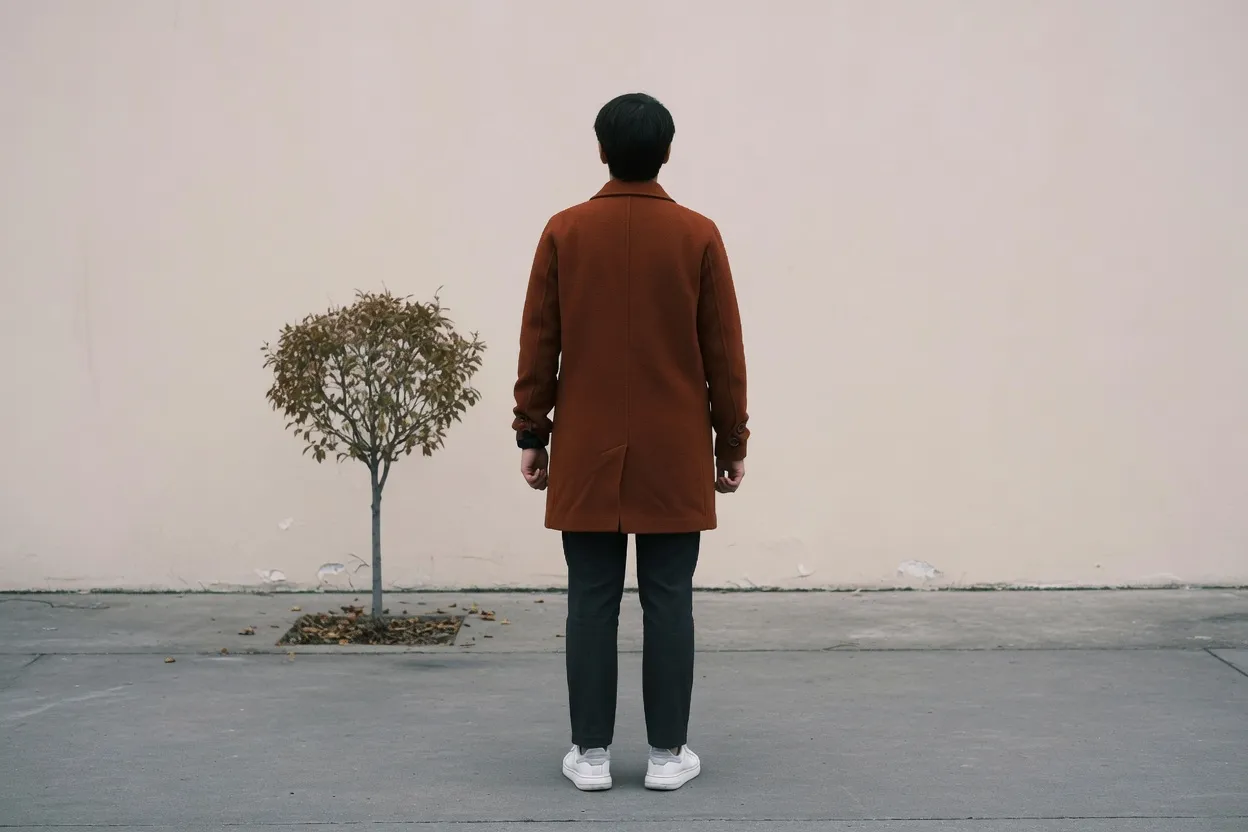
35mm film and most DSLR stills are 3:2. A 6×4 inch print is the same ratio on paper. On this site the matching common-size frame is 1200×800. It is wider than 4:3 and shorter than 16:9. The source photograph is already 3:2, so this block is the undistorted reference.
A 9:16 story stretched into 3:2 is a hard horizontal squash: the standing person becomes short and wide. A square 1:1 still stretched into 3:2 is a milder version of the same pull. Neither one is a crop of the middle. The whole picture is scaled until the frame is full.
1200×800 is 3:2. 1920×1080 is 16:9. Both are landscape, and they are not the same file. Locking 3:2 does not type 1200 and 800. Set those pixels when the brief is the 6×4 print or the common-size frame.
Lock 3:2 in the tool21:9 wide cinema
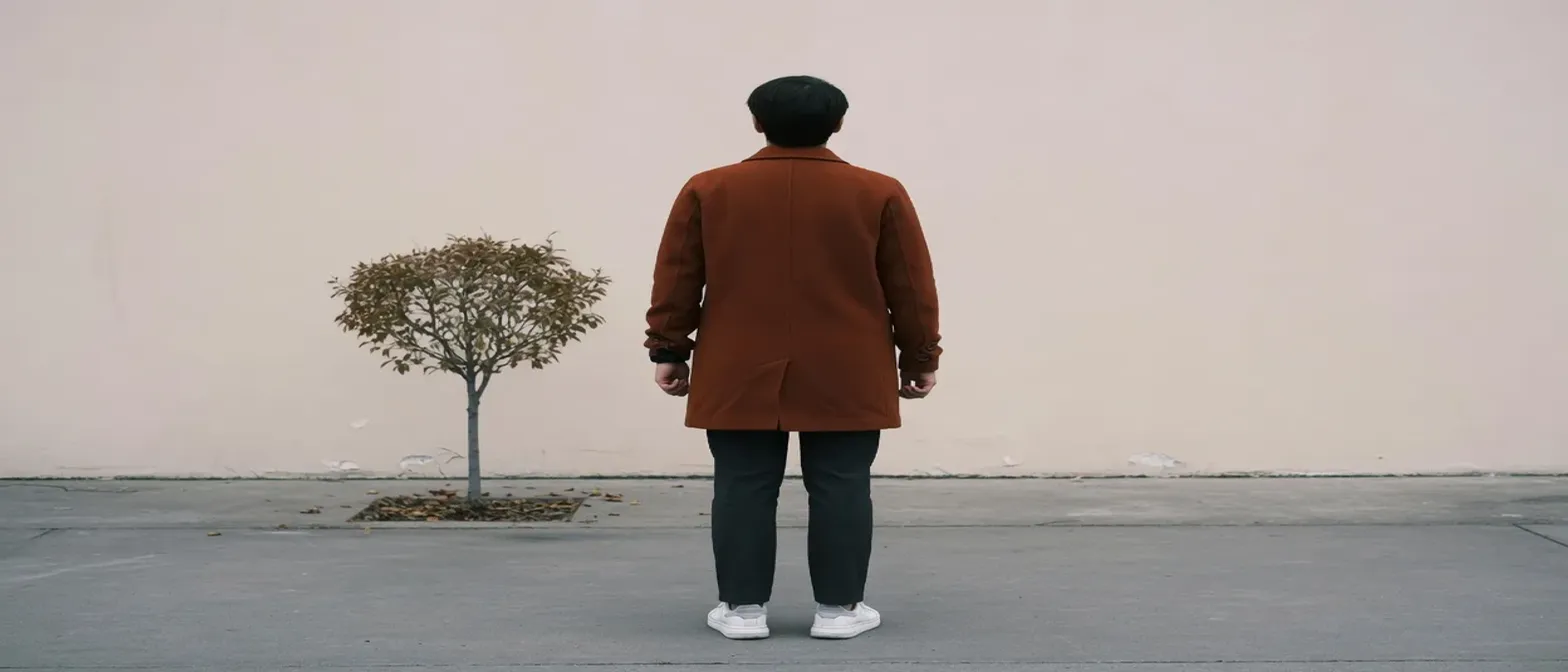
21:9 is the integer name for a cinematic widescreen, about 2.39:1. Ultrawide wallpapers are often sold under that name too. This site has no template whose sides divide to exactly 21:9.
Stretching an ordinary 16:9 still out to 21:9 pulls the subject sideways again. The person gets shorter and wider than they already were in the video frame. The photograph above shows that pull from the 3:2 source, which is an even larger sideways stretch than starting from 16:9.
LinkedIn’s personal cover in these templates is 1584×396, which is 4:1, wider than 21:9. Facebook’s cover is 820×360, about 2.28:1, a little taller than 21:9. A 2560×1080 wallpaper is 64:27, not integer 21:9. Locking 21:9 matches none of those files.
Lock 21:9 in the tool2:3 portrait prints
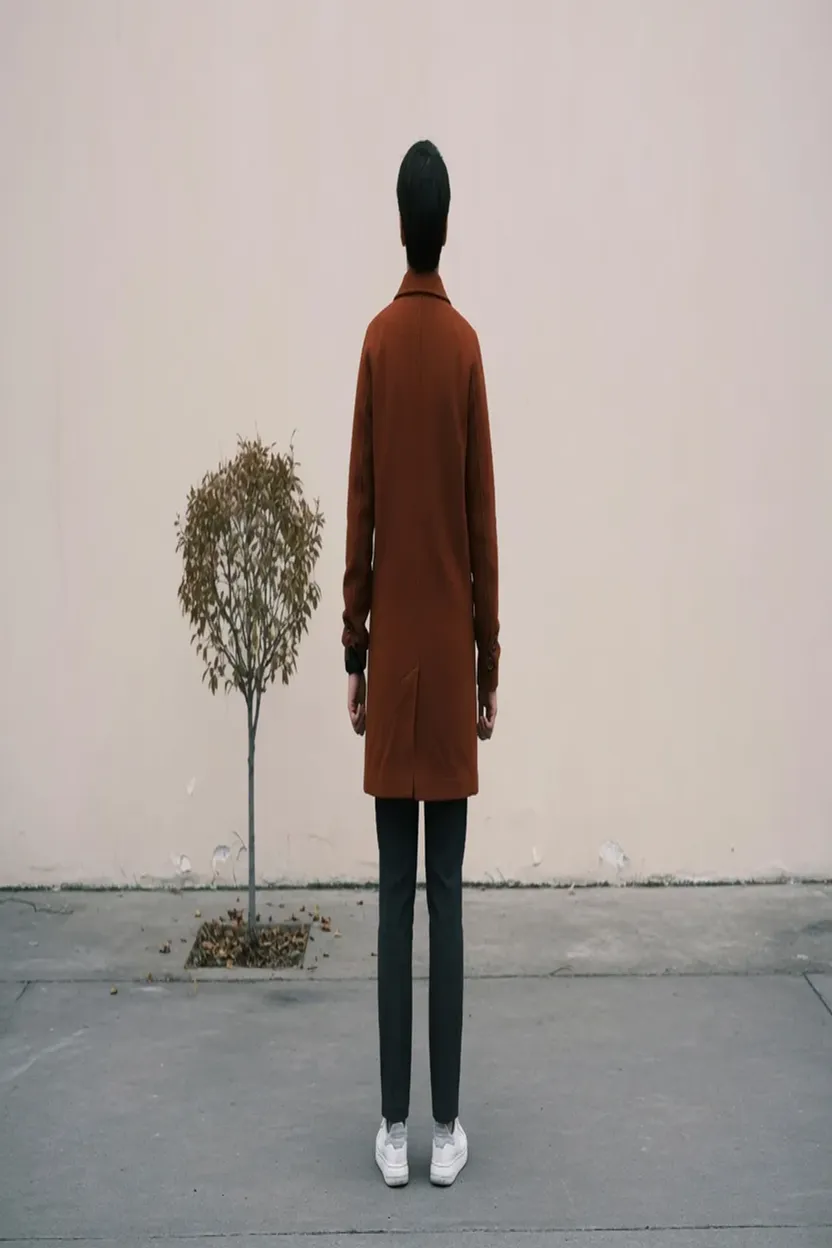
A 4×6 inch portrait print is 2:3. The pin size people often request, 1000×1500, is 2:3 as well. This page’s source is a 3:2 landscape, so the photograph here is pulled tall into that portrait.
A 16:9 landscape stretched into 2:3 is a severe vertical pull. The person becomes much taller and narrower. Filling the print this way keeps the whole original picture and distorts it. Cutting a 2:3 window out of the landscape would drop the sides instead, which this tool does not do.
The Pinterest Idea Pin in this site’s templates is 1080×1920, which is 9:16, not 2:3. Instagram’s portrait post is 1080×1350, which is 4:5, not 2:3. A 4×6 or a 1000×1500 file pulled into either slot is stretched a second time.
Lock 2:3 in the toolQuestions
Does locking a ratio choose the pixel size?
No. 16:9 can be a 1280×720 thumbnail or a 2560×1440 banner. Type the width and height after the lock.
Is a stretched frame the same as a crop?
No. Stretching scales the whole picture until the frame is full, so the subject changes shape. A crop throws the sides away.
Can 21:9 stand in for a LinkedIn cover?
No. The personal cover in these templates is 1584×396, which is 4:1, wider than 21:9.
Other ratios
These 61 ratios stay on this page as names. Open the tool and lock one there. They are not separate pages.
- 1:2
- 1:3
- 1:4
- 1:5
- 1:6
- 1:7
- 1:8
- 1:9
- 2:1
- 2:5
- 2:7
- 2:9
- 3:1
- 3:4
- 3:5
- 3:7
- 3:8
- 3:21
- 4:1
- 4:7
- 4:9
- 5:1
- 5:2
- 5:3
- 5:4
- 5:6
- 5:7
- 5:8
- 5:9
- 6:1
- 6:5
- 6:7
- 7:1
- 7:2
- 7:3
- 7:4
- 7:5
- 7:6
- 7:8
- 7:9
- 7:10
- 8:1
- 8:3
- 8:5
- 8:7
- 8:9
- 9:1
- 9:2
- 9:4
- 9:5
- 9:7
- 9:8
- 9:14
- 9:20
- 10:7
- 10:16
- 10:19
- 14:9
- 16:10
- 19:10
- 21:3
Use px when you already know the pixel size. Use inches, cm, or mm with DPI when the size is physical. DPI uses inches at the default print resolution.