How to Stretch an Image Without Cropping
ImageStretcher
Fill a new width and height while keeping every source pixel. Compare stretch, locked resize, crop, and AI expand, then do it in the browser.
Cropping throws pixels away. Stretching keeps the whole bitmap and remaps it onto a new width and height. When the brief is “fill this frame” and letterbox bars are not allowed, stretch without cropping is the move that still contains the original edges.
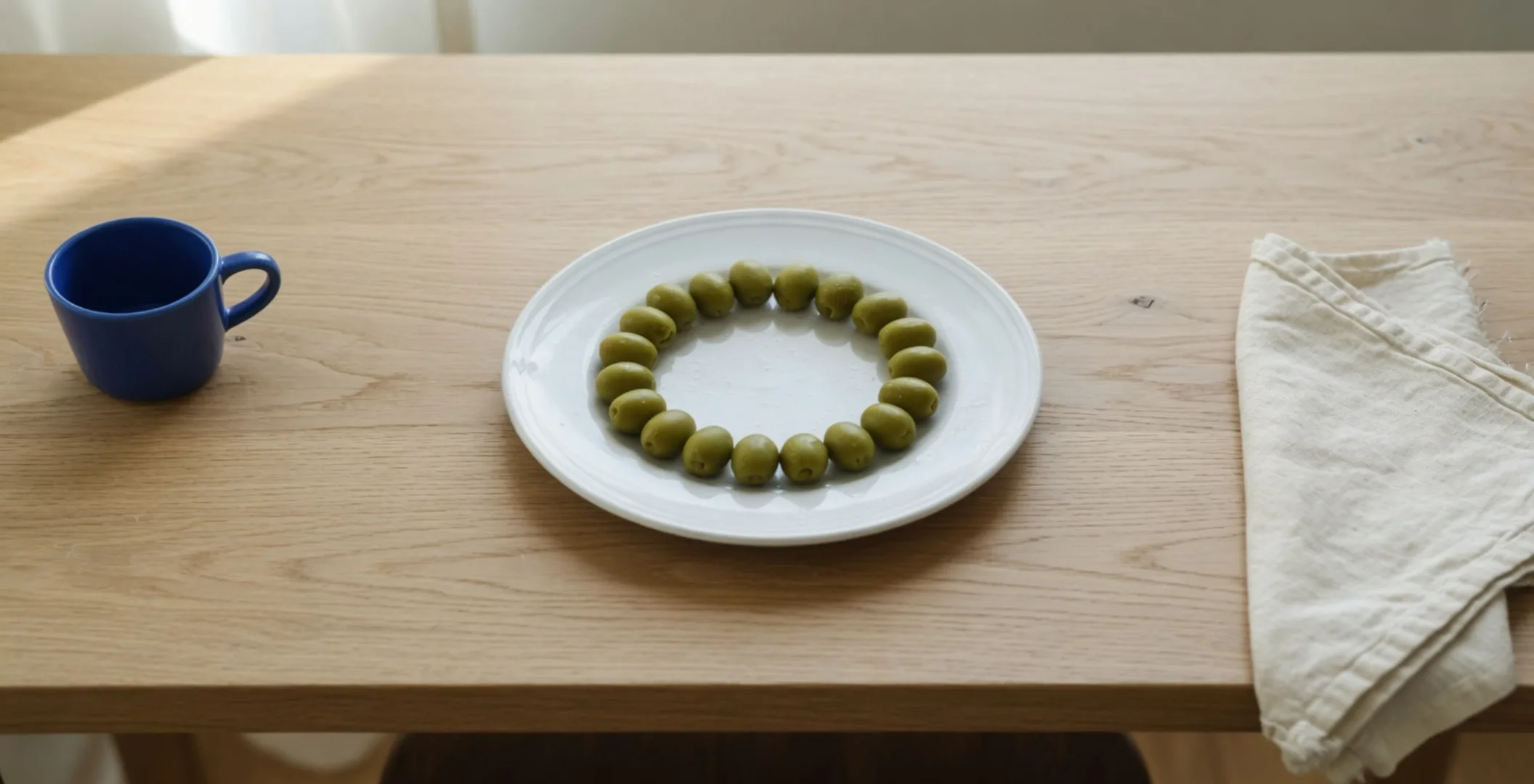
Every frame on this page is the same photograph. It is a 16:9 view of a pale oak table, saved here at 1920×1080. A white plate of green olives sits in the middle, and that plate is a circle. A cobalt cup is fully inside the left edge. A folded linen napkin is fully inside the right edge. Nothing has been cut off yet.
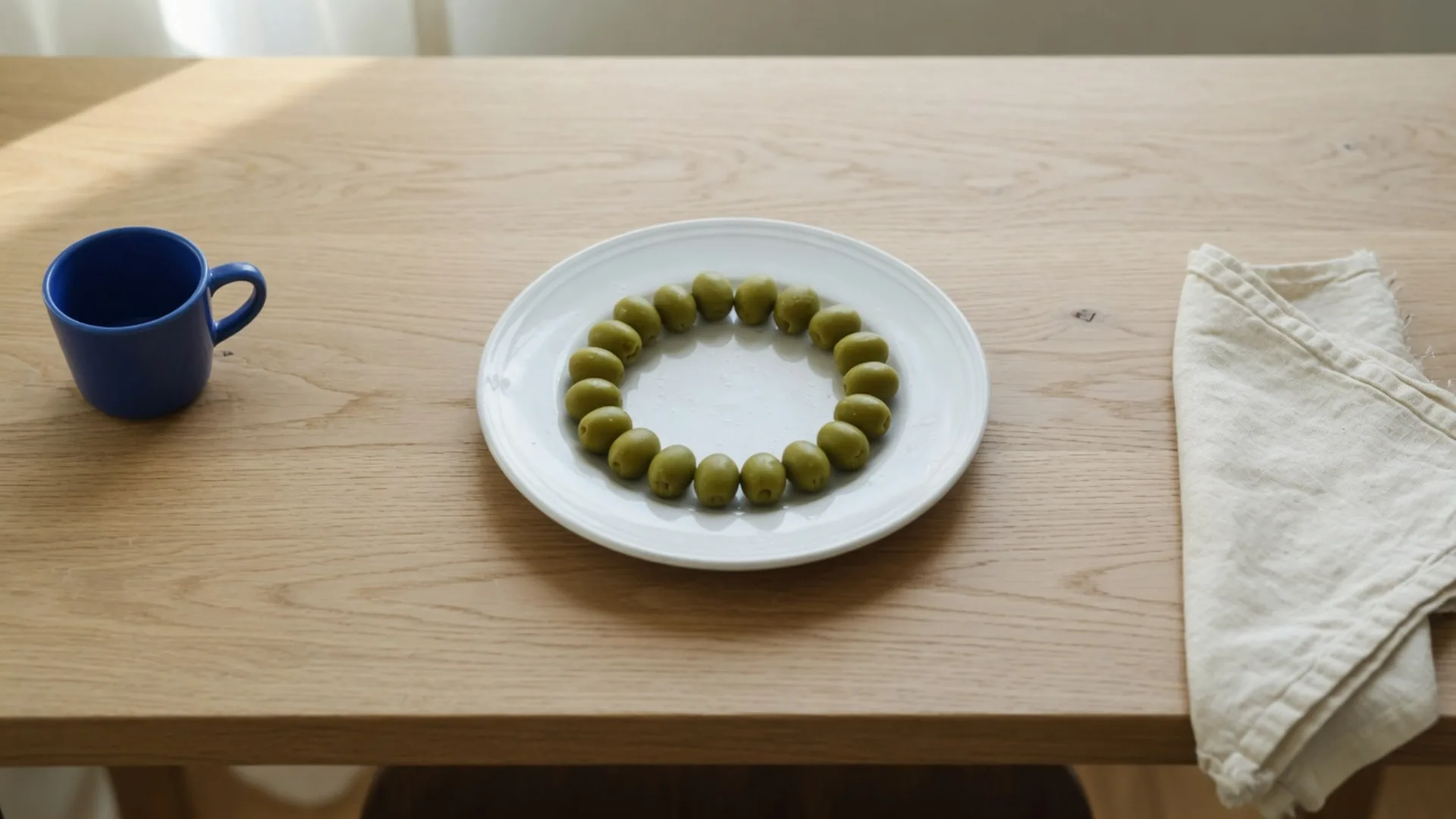
The plate is the measuring stick. A circle that becomes an ellipse has been remapped. A circle that stays a circle was either resized on a lock or cut out of a larger frame. The cup and the napkin are the edges: if they are still in the file, the export did not crop.
This page is the decision guide. The tool itself stays on the image stretcher. Platform boxes live on their own landings. Canva’s side-handle path is a separate note: how to stretch an image in Canva.
What “without cropping” actually changes
A crop is a window. You pick a rectangle inside the photo and discard the rest. A locked resize scales both axes by the same factor, so this 1920×1080 table becomes 960×540 and the shape stays 16:9. Stretching sets width and height on their own. The file’s outer edges still exist in the export. They just sit closer together or farther apart than they did in the camera.
That difference is the whole job. A banner spec that says 1500×500 does not care that the source was 16:9. It cares that the downloaded file is 1500 pixels wide and 500 pixels tall, with no empty bands. Stretch meets that spec by moving every pixel, including the cup and the napkin. Crop meets it only after you have chosen which band of the table to keep.
Four ways to change the frame
| Goal | What happens to pixels | Use it when |
|---|---|---|
| Stretch | Every source pixel is remapped. Width and height can differ. | The frame must be full, and a little warp is acceptable. |
| Locked resize | Both axes scale together. Aspect stays. | You need a smaller file of the same shape. |
| Crop | A rectangle is kept. The rest is gone. | A face, logo, or label must stay geometrically honest. |
| AI expand | The original stays. New pixels are invented outside it. | You need a taller or wider scene without squashing the subject. |
The half-size file below is the locked-resize row. Both axes were halved, so the bitmap is 960×540 and still 16:9. The plate is still a circle, the cup is still a cup, and the napkin still sits at the right. It is drawn narrower on this page because a full-column copy would look identical to the source. It does not fill a square, and it does not fill a 1500×500 banner.
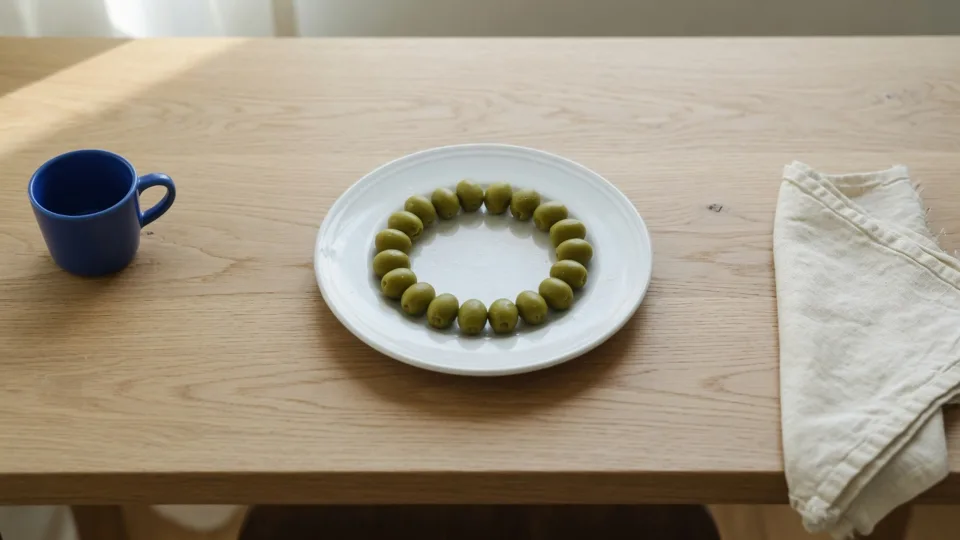
ImageStretcher covers the first three on the device. AI Image Expander is the fourth, and it sends a temporary smaller copy only when you generate. Crop image is the dedicated crop path when the stretcher’s frame is the wrong tool. Expanding would leave this plate a circle and invent table beyond the original edges. That is a different file from any of the remaps below.
A worked size: 1920×1080 into a square
Start with the 1920×1080 table. The destination is 1080×1080.
Horizontal scale is 1080 ÷ 1920 = 0.5625, so the picture becomes a little over half as wide. Vertical scale is 1080 ÷ 1080 = 1, so the height does not change. The export is square. The plate is a tall ellipse, the olives are stretched the same way, and the cup’s opening is oval. The left and right edges of the original are still in the file, which is why the cup and the napkin are both still visible.
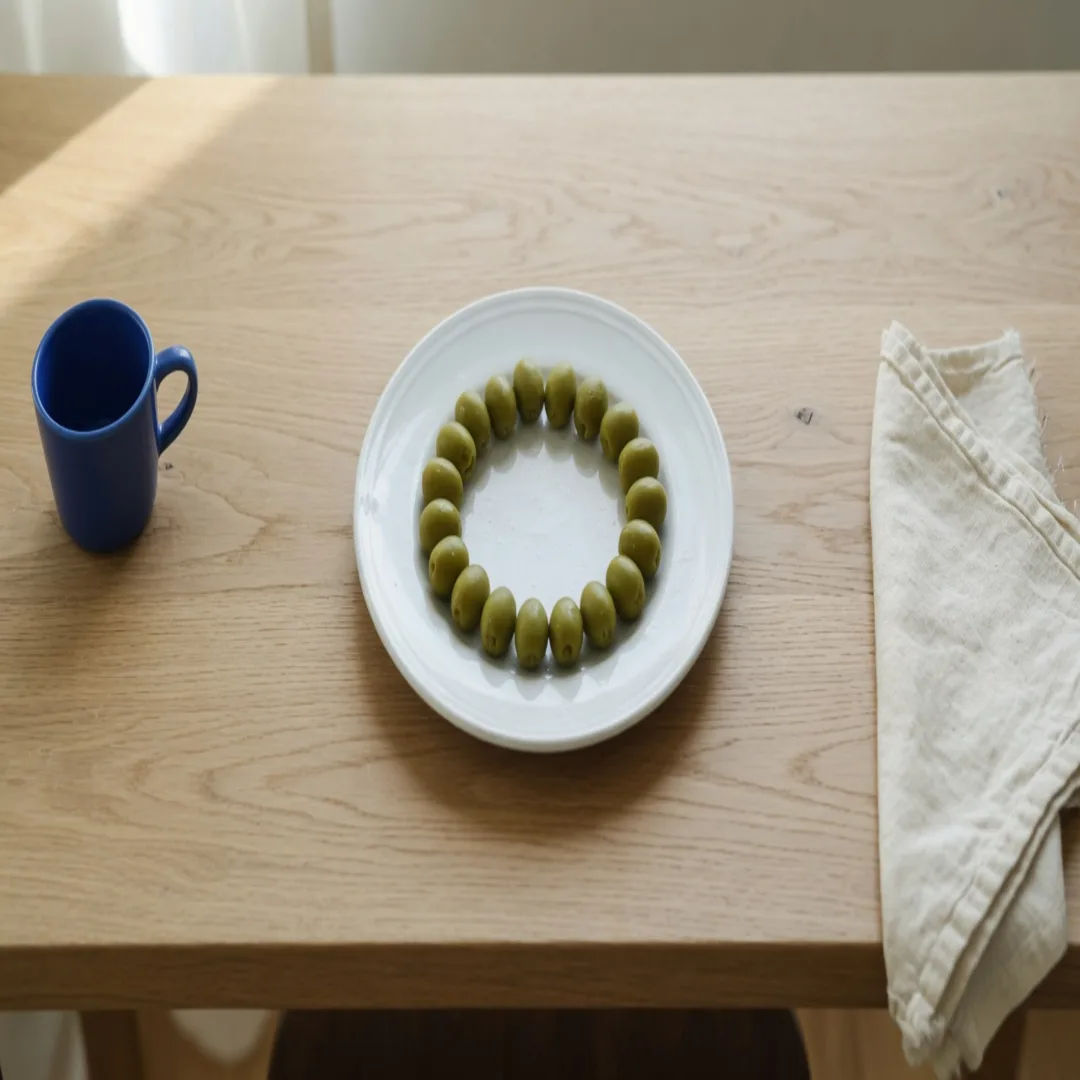
A center crop of the same square throws away 420 pixels on the left and 420 pixels on the right. The plate stays the circle the camera recorded. The cup and the napkin are not in the window.
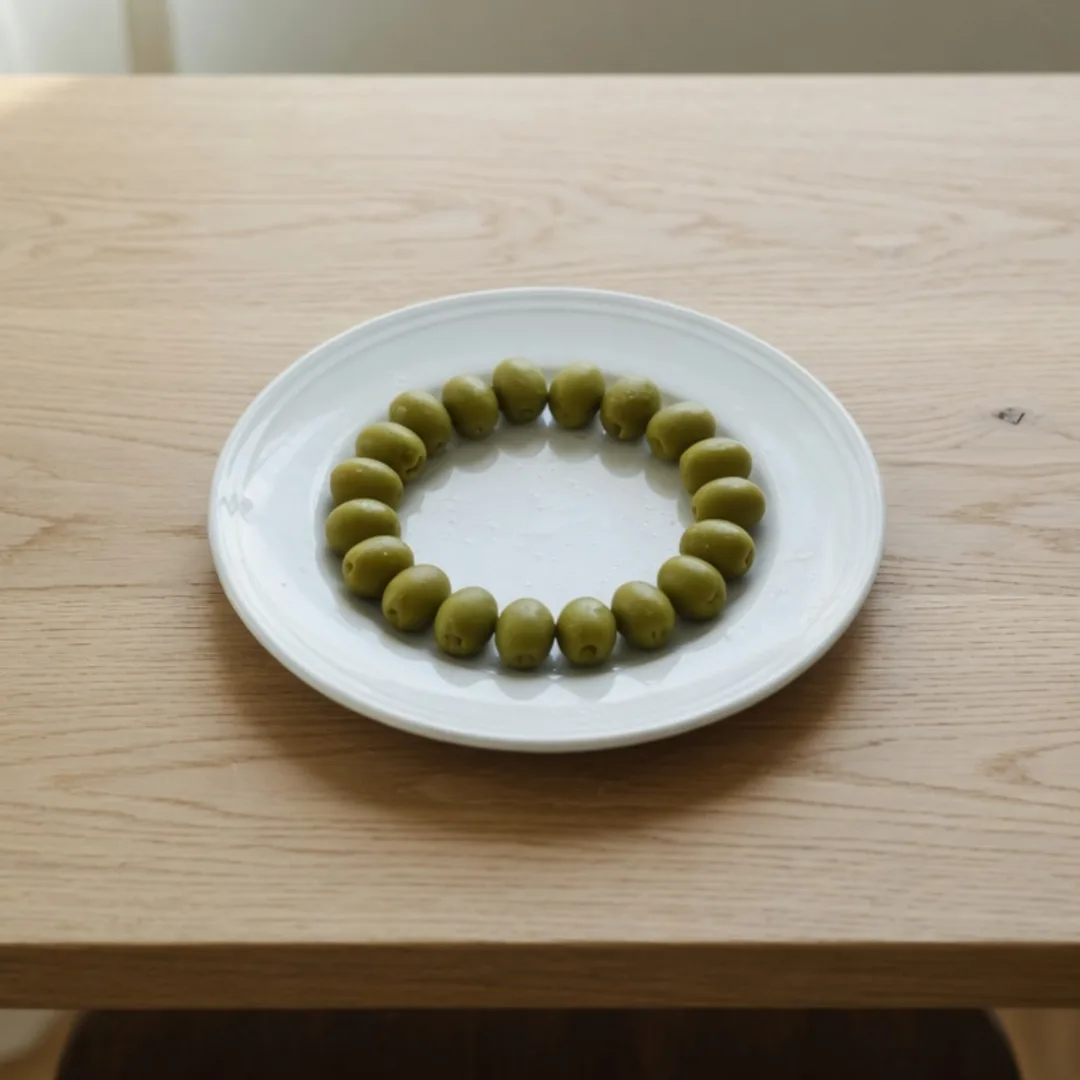
The next two frames are the plate alone, cut from those two squares so the shape is easier to judge. The first is the remapped plate: the rim and the ring of olives are tall. The second is the cropped plate: the same olives still make a circle. Nothing new was photographed. One window was squeezed, and the other was cut.
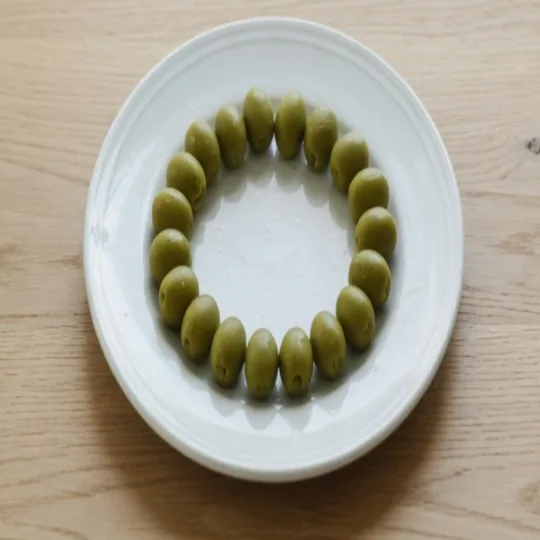
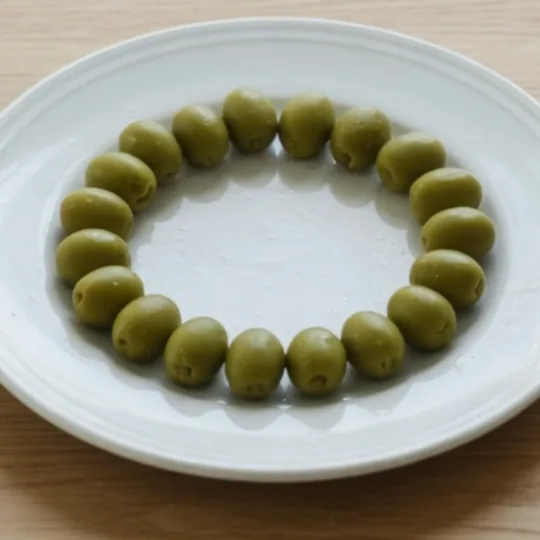
The left edge makes the same point without the plate in the way. On the stretched square, that strip still holds the cobalt cup, now oval, because the full width was kept and then compressed. On the crop, the same strip is bare oak and a sliver of the plate’s rim. The cup never entered that 1080-pixel window.
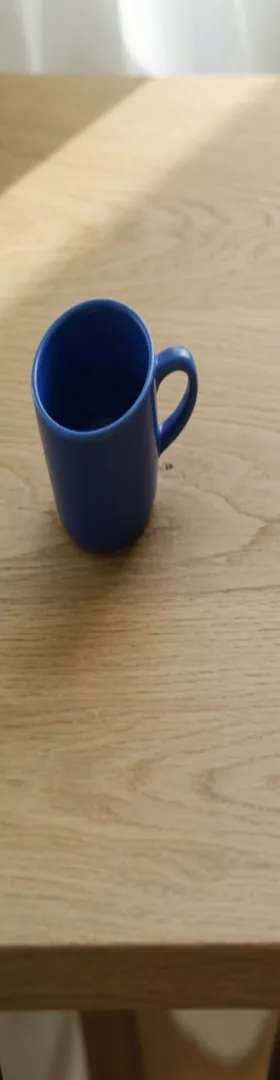
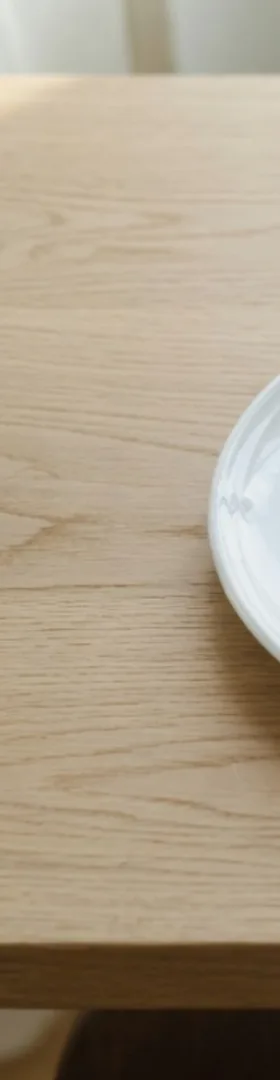
The same arithmetic applies to any pair of sizes. Divide target width by source width, and target height by source height. When those two quotients match, you are resizing. When they differ, you are stretching. A brief that asks for more table above and below the plate, without squashing the circle, is the expander’s job rather than another pass of these factors.
When the warp is the point
A 1500×500 banner is the loud case. Width scale is 1500 ÷ 1920, about 0.78. Height scale is 500 ÷ 1080, about 0.46. The plate flattens into a wide ellipse, the cup becomes a shallow oval, and the napkin is still at the right edge because the file was never cropped. The banner is full. That is the spec. It is also obviously warped, which is acceptable for a texture, a pattern, a catalog tile that has to touch all four edges, or a wide dashboard screenshot that still needs every control present. A meme that wants the warp is the same geometry with a joke on top.
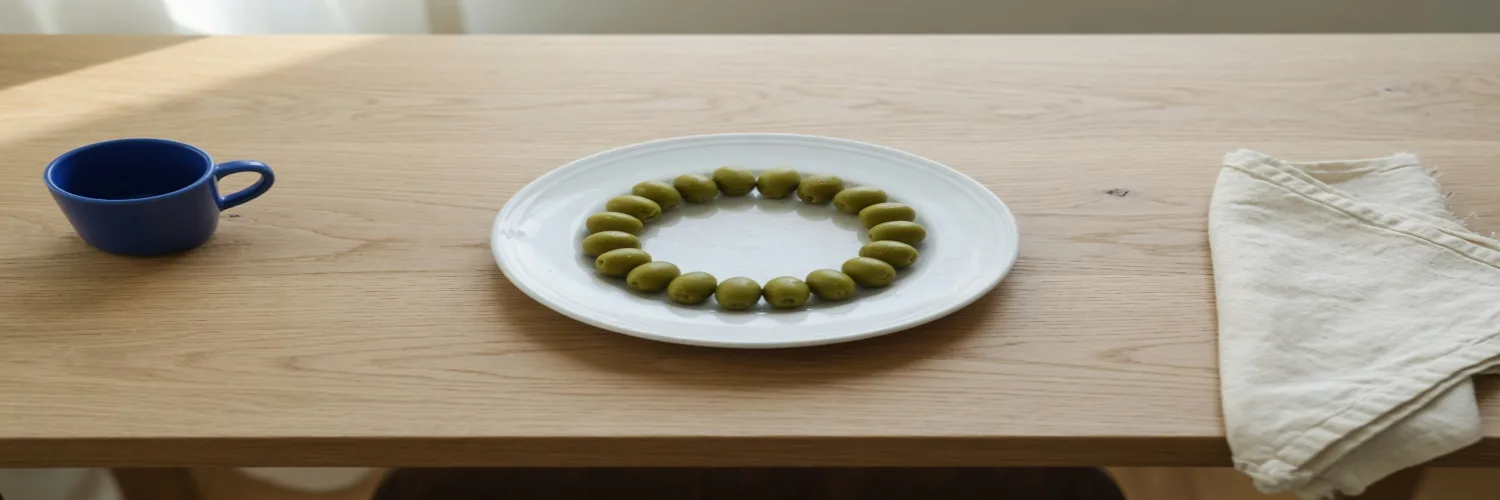
A ten percent pull is the quiet case. This file is 2112×1080: width times 1.10, height unchanged. The plate has barely left the circle. At feed size you can miss it. The square above, which takes one axis down to 0.5625, you cannot miss. Choose Free, type the target width and height, and use the preview to stop before export when the ellipse is more than the brief asked for.
When you should still crop
Leave the remap alone when the circle, or the face, is the product. A headshot, a passport-style portrait, or any face a viewer will compare with a person should stay the shape the camera recorded. A logo, a wordmark, or a UI icon has a brand geometry that an ellipse gives away. Type has to stay the weight the designer drew. A measurement photo, a floor plan, or a diagram is lying once distances change. Those files belong on crop or on a locked resize like the half-size table above. The longer comparison, including a decision order, is stretch vs resize vs crop.
Steps on the home tool
- Open the image stretcher.
- Drop a PNG, JPEG, or WebP, or paste a screenshot. Stretch and download stay in the browser.
- Under Aspect, choose Free, then set Width and Height on their own. Unlock stretch ratio is the factor control, not the switch that frees the pixel box.
- Type the target width and height, or pick a template card. A template is a named box, not a new algorithm.
- Watch the canvas. If a face or a logo breaks, switch to crop for that region, then stretch only if the remaining frame still misses the spec.
- Download PNG when edges must stay sharp, or JPEG or WebP when the slot also has a file-size cap. JPEG and WebP include a quality control.
Horizontal-only pulls, where height stays put, are written up in how to stretch an image horizontally.
What the file you save contains
The download is a new bitmap at the size you set. The original on disk is untouched. PNG keeps hard edges and transparency. JPEG and WebP compress, and a very low quality slider will add blocks that look like a bad stretch even when the geometry is as mild as the 2112×1080 frame. If the only problem is kilobytes and the pixel size is already correct, use compress image instead of pulling the axes.
Share link is a separate button. It uploads a watermarked copy so someone else can open a page. Skip it when the file should never leave the device. The plain download does not use that path.
Checklist before you export
Match the preview’s width and height to the spec, not to the camera’s aspect. Keep any face or logo you must protect either unstretched or already cropped out of the danger zone. Confirm you can still see the edge detail a crop would have deleted — on this table, that detail is the cup and the napkin. If they are missing, you cropped. If the plate is an ellipse and the brief needed a circle, you stretched past the job. Then match the format to the next step: PNG for another editor, JPEG or WebP for a size-capped upload.
Open the tool on the home page when the frame is wrong and the subject still has to be entirely inside it.