Image Splitter
Cut one photo into rows and columns, then download every cell in a ZIP. Free, and the file stays on your device.
Each cell is a piece of the original. The cut does not bend the picture to fill a new frame.
Upload image
PNG, JPEG, WebP, or GIF. One photo becomes the grid.
4 PNG files
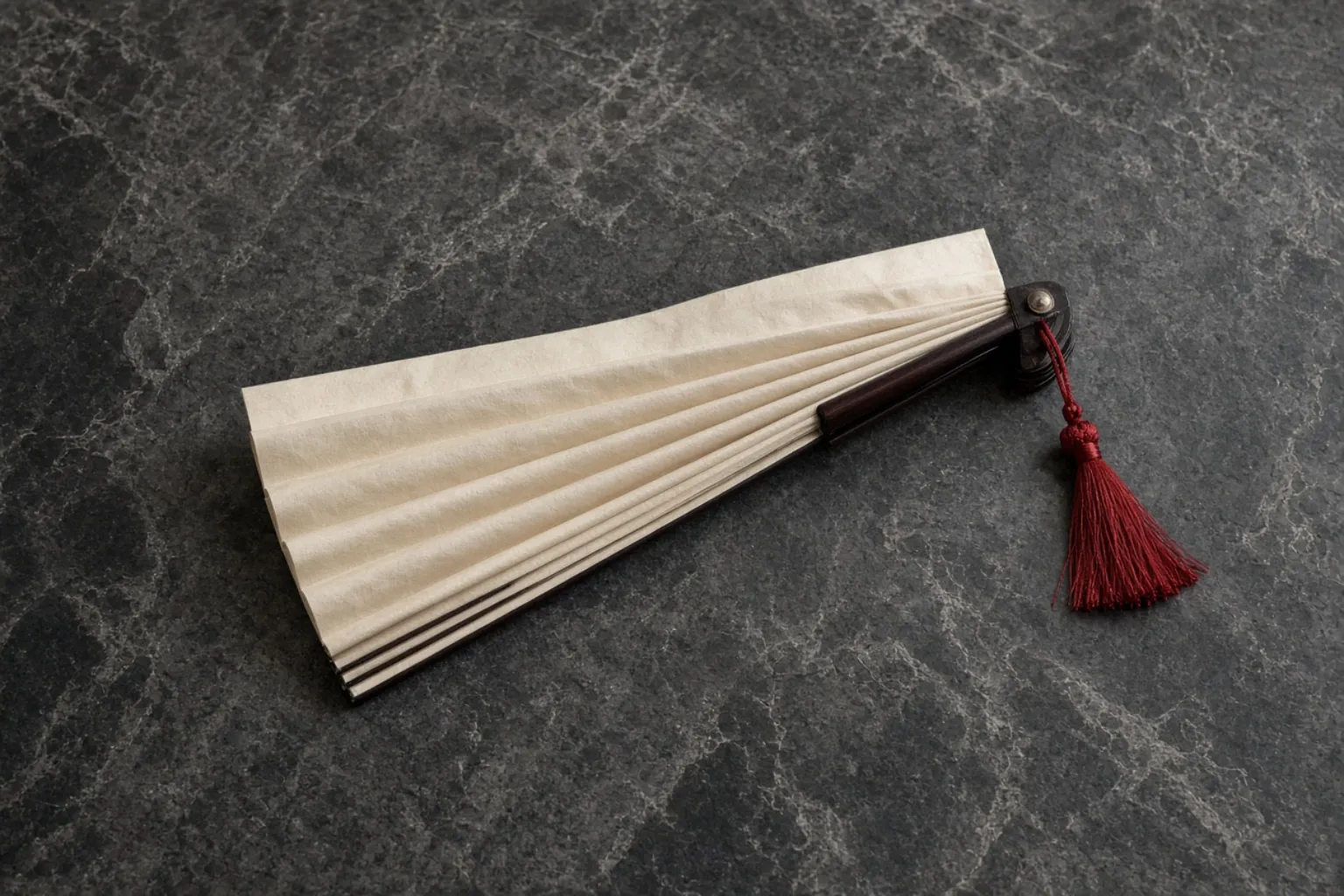
One closed fan, before the cut
Three files, with the seam left open
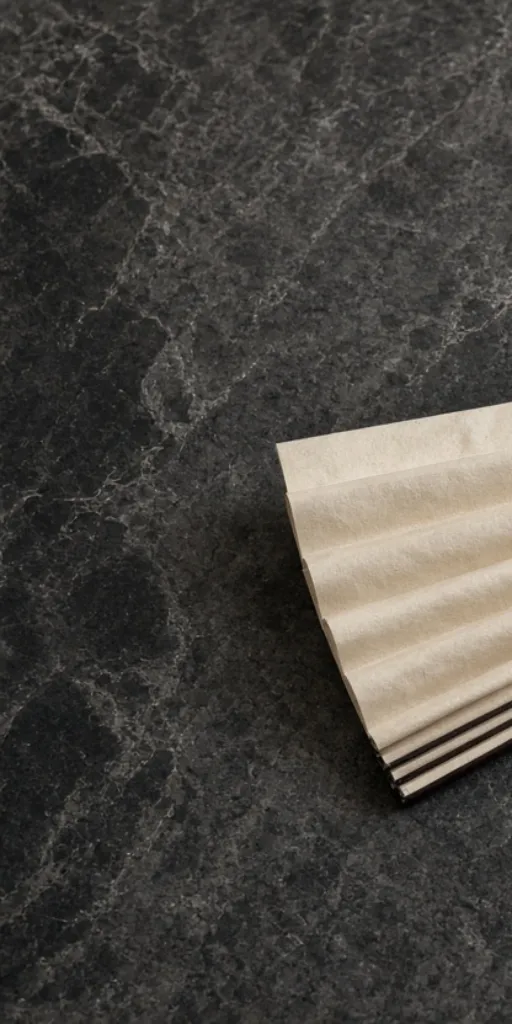
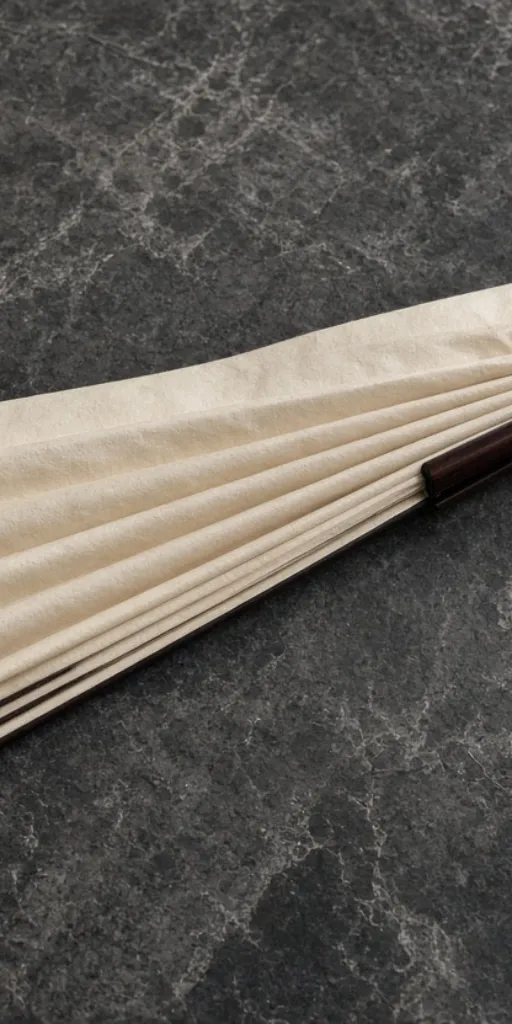

The same fan, cut the other way
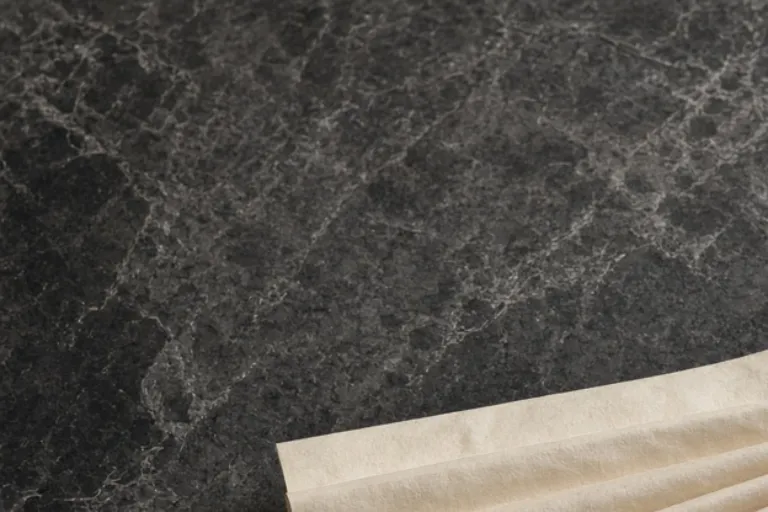

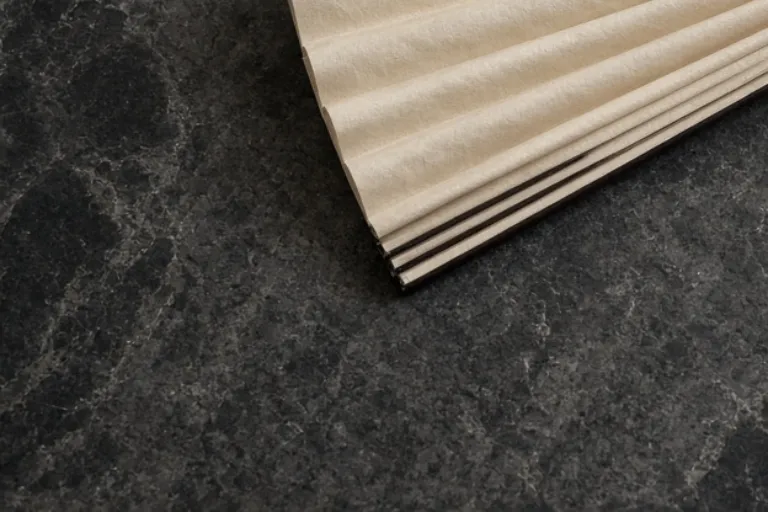
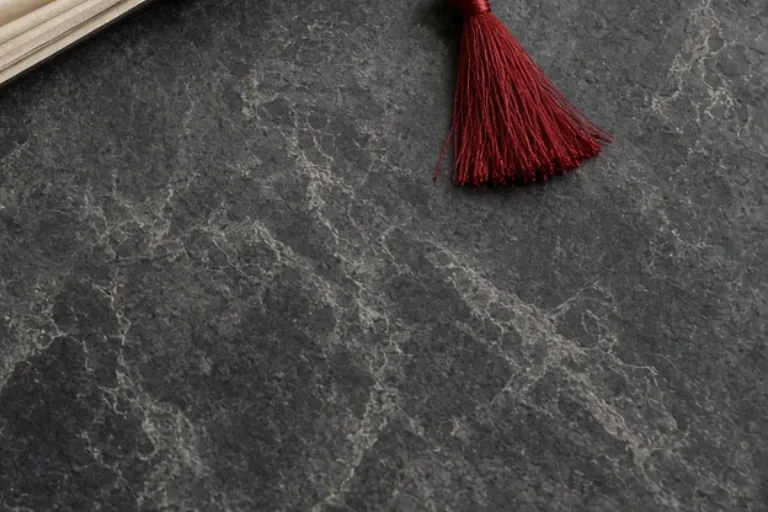
Four PNGs, one ZIP. The names are r1-c1, r1-c2, r2-c1, and r2-c2. Crop would keep one of these windows and drop the other three. The splitter keeps the set.
How to split an image into a grid
The grid is rows times columns. A 3×1 cut is three files side by side. A 3×3 cut is the nine-cell grid.
- Step 1
Open one photo
Drop a file, or paste it. The splitter keeps a single image. It does not queue a folder.
- Step 2
Choose the grid
Use 2×2, 3×3, 3×1, or 1×3, or type your own rows and columns. Each axis stops at 10.
- Step 3
Read the lines
The lines on the preview are the cuts. A width that does not divide evenly gives the extra pixel to the rightmost column, and the same for the bottom row.
- Step 4
Download the ZIP
Every cell is a PNG named with its row and column. Open the archive and the pieces are still the original pixels.
Image splitter FAQ
- Does the image splitter stretch the photo?
- No. Each cell is a cut from the original. The image stretcher is the tool that bends a photo to fill one new frame.
- What if the width does not divide evenly?
- No pixel is dropped. The extra pixels go to the columns on the right and the rows on the bottom, so neighboring cells differ by at most one pixel.
- How is this different from crop image?
- Crop keeps one window and throws the rest away. The splitter keeps every cell and puts them in one ZIP.
- Do I need an account?
- No. The cut and the ZIP stay in the browser. Nothing is uploaded.