How to Stretch an Image on iPhone
ImageStretcher
iPhone Photos can't stretch images natively — here's how to stretch an image on iPhone in Safari with a free online tool, no App Store download.
iPhone Photos cannot stretch an image. Open a shot, tap Edit, tap Crop, and you get a crop box, a straighten wheel, and two perspective sliders. Those tools clip or pinch the window you already have. They do not remap the whole bitmap onto a width and height you type. There is no Stretch button in Photos, and Markup will not invent one. To stretch an image on iPhone without an App Store download, do it in Safari with a free online tool. The file stays on the phone through preview and download.
The photograph below is the camera-roll still this page measures. A round jar sits on the left, with a blank cream label on the glass, and a phone lies on the right with the screen off. Nothing in the pixels is an iOS control. The lid shows whether the shape changed. The label shows whether the left side survived. The dark screen shows whether the phone is still in the file.
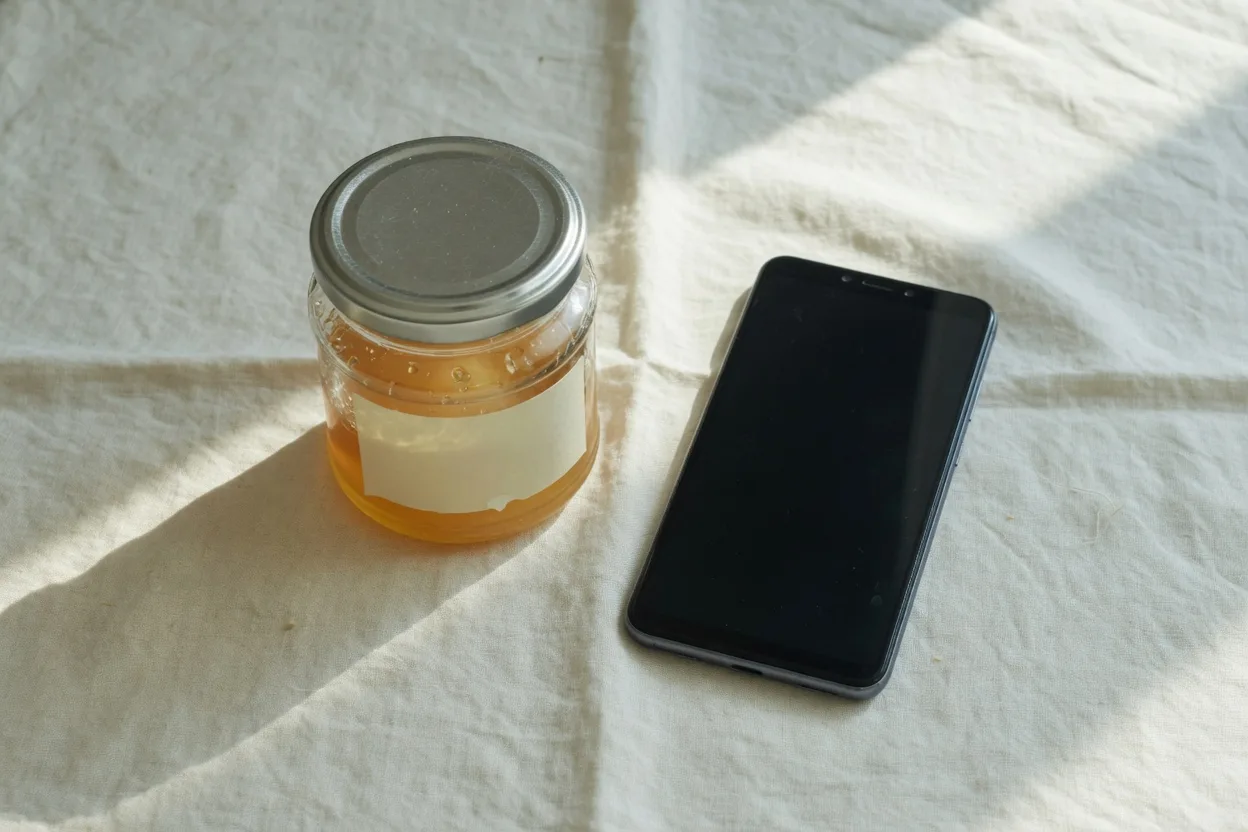
The lid measures 261×186. The label measures 211×122 and starts 37 pixels to the right of the lid’s left edge. The screen measures 310×427 and starts at x=628, which is 65 pixels past the label. The label runs from x=352 through x=562. Later frames are this bitmap resampled, or a window of it. None of them were generated again, and none of them draw the Photos app.
Photos crop is not a stretch
Crop throws the edges away so the remaining rectangle matches a ratio. The aspect chips inside Crop lock that window. Straighten rolls the photo in place, then Photos still commits a crop. Vertical and Horizontal look closer to stretch because the picture warps, and they are still a crop commit: the warped window becomes the new file, and the leftover pixels are gone. None of those screens let you type a free width and a free height.
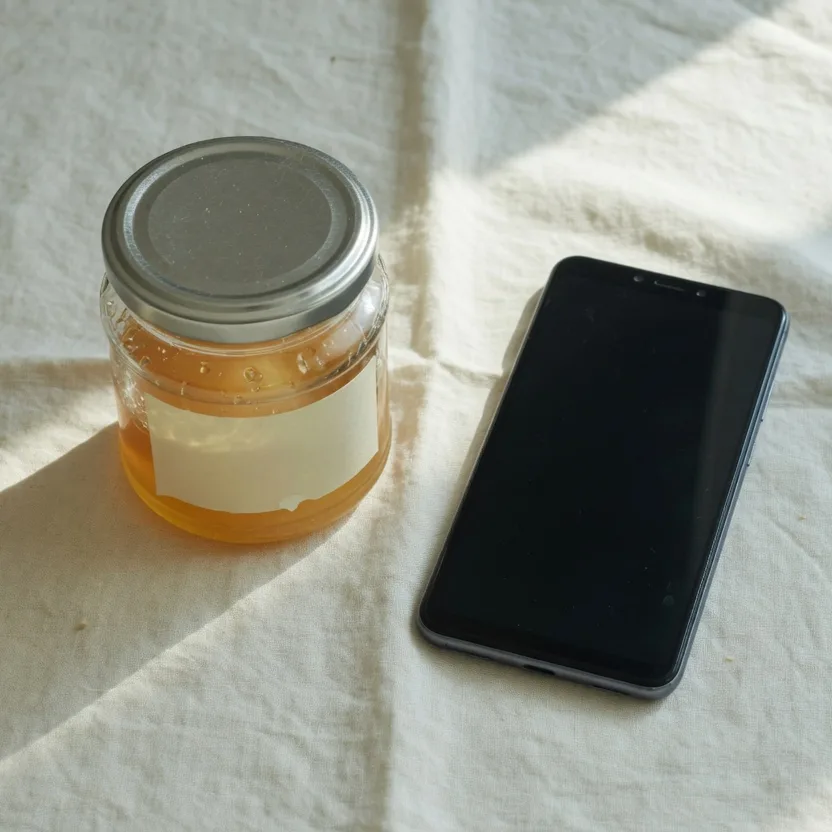
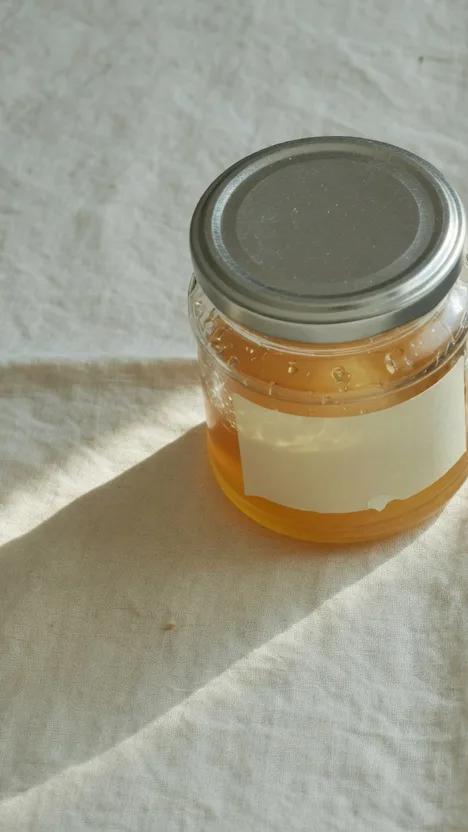
The three files under this paragraph are that commit, without the Photos chrome. Each one is a window of the 1248×832 still. The lid stays 261×186 in all three, which is how you know the pixels were not remapped.
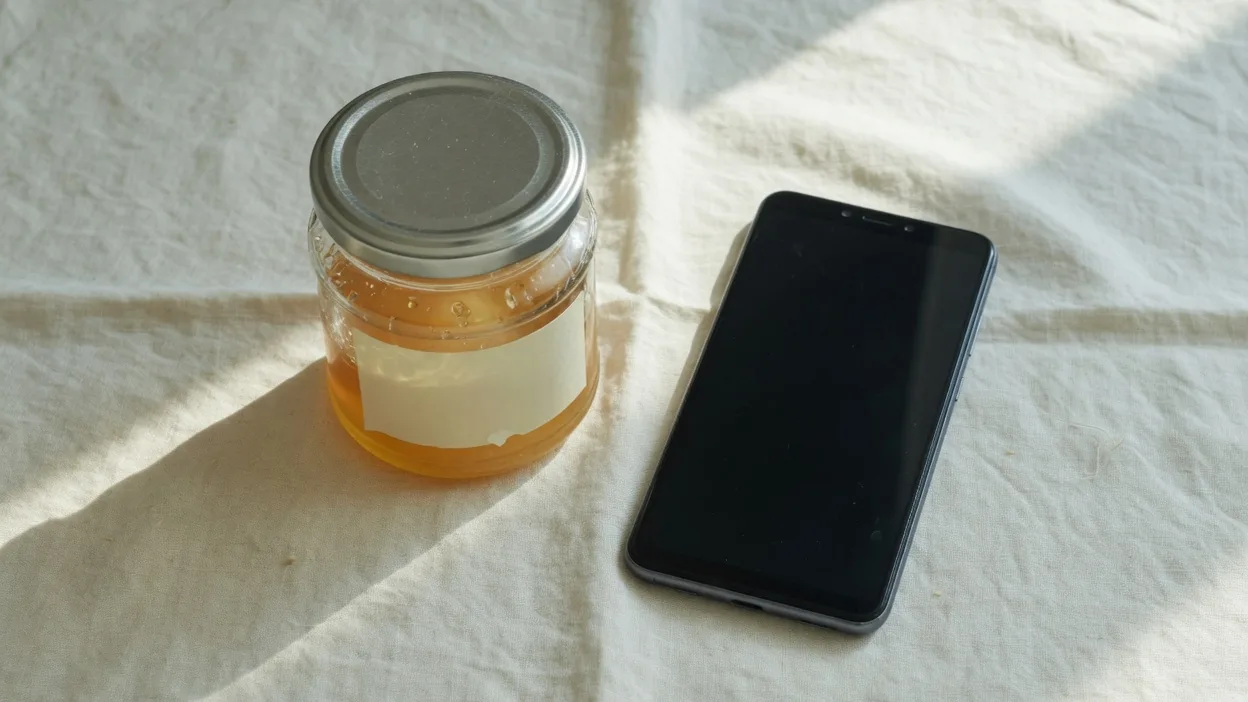
These three share a top, and the bottoms do not. The 16:9 chip is the full width with 65 pixels of linen removed at the top and again at the bottom (832 − 702 = 130). The lid, which starts at y=136, is still complete at y=71. The label is still 211×122, now at y=325. The screen is still 310×427, now at y=195. A 16:9 chip on this 3:2 file only shaves linen.
The square chip uses the short side, 832 pixels, and starts at x=208 so the window is centered (1248 − 832 = 416, half of that is 208). The lid is 261×186 at x=107. The label is 211×122 at x=144. The screen is 310×427 at x=420, so it runs through x=729. The window runs through x=1039. On this still the square chip keeps the jar and the phone. It does not throw the label away.
The 9:16 chip is 468 pixels wide (832 × 9 / 16) and the full 832 tall. A centered window would start at x=390. The lid starts at x=315, so that centered window would take 75 pixels off the lid. The file above is dragged left, to x=120. The lid stays 261×186 at x=195, and the label stays 211×122 at x=232. The window ends at x=588. The screen starts at x=628, which is 40 pixels outside, so the phone is gone and the lid is not. That is the Photos job: the circle’s proportion survives because the window moved, not because the bitmap was stretched.
Markup, Shortcuts, and the App Store hunt
Markup is pens, text, and a signature. It will not pull one axis. Shortcuts can resize an image, and the stock actions keep the ratio, so the lid stays in the proportion 261:186. That shrinks a JPEG for a message. It does not fill a box whose shape differs from the camera. The App Store listings want an install and an upload. One file you already like does not need a listing.
Stretch an image on iPhone in Safari
The online image stretcher runs in Safari. Stretch and download stay on the device. No account, no App Store listing.
- Open the ImageStretcher home tool in Safari.
- Tap Upload image and pick a photo from the library. iPhone has no desktop drop zone. The picker is the path.
- Under Aspect, tap Free. Set Width and Height on their own. For a story frame those numbers are 1080 and 1920.
- Pinch the preview before you trust a mild pull. A story slot that looks fine as a thumbnail can still squash the lid once you zoom in.
- Tap Download for PNG, JPEG, or WebP.
Unlock stretch ratio sits under Stretch factors. It lets Horizontal and Vertical move as multipliers, and it does not turn Free on. Named sizes live under Select Template, and they are spelled out in how to stretch an image for social media. This page is the path from Photos onto the canvas.
After step 3 the bitmap is already remapped. The story file is this still at 1080×1920. Width is multiplied by 1080/1248 and height by 1920/832, so the two axes are not the same scale.
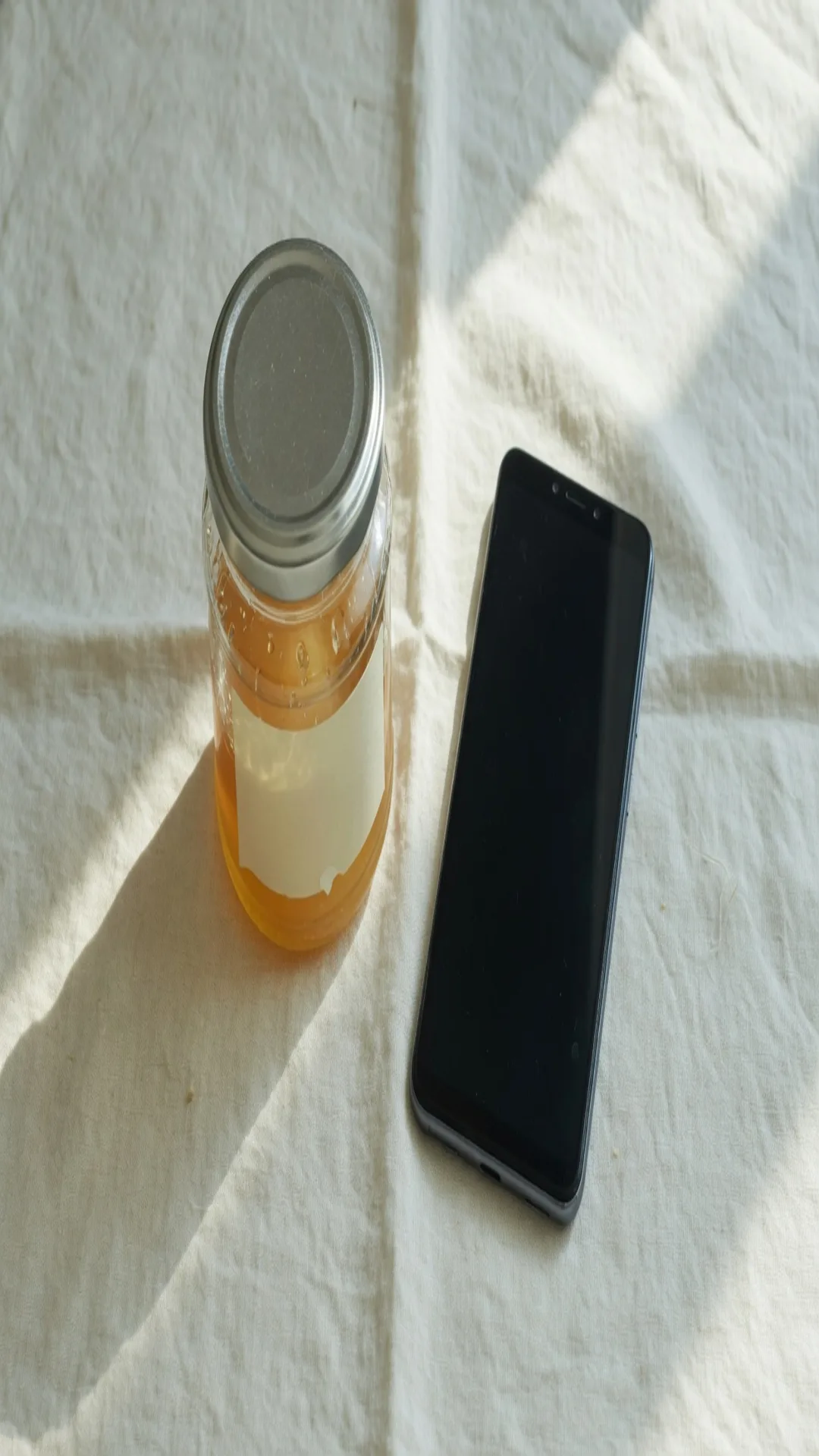
The screen is 268×985 at x=544, y=600. The lid is 226×429 at x=273, y=314. The label is 183×282 at x=305, y=900. 310 × 1080 / 1248 is 268. 427 × 1920 / 832 is 985. The phone is taller, and it is still in the file. The label is taller too, and it still starts on the left of the jar.

The crop beside that story is the x=120 window enlarged until it is also 1080×1920. Both axes of the window share one scale, 1080/468, so the lid stays in the proportion 261:186. The screen never enters the window. Matching the pixel size of a story slot by enlarging a crop is how the phone disappears. Matching it by Free, with Width 1080 and Height 1920, keeps the phone and changes the lid.
The camera roll is often HEIC. Safari can usually open that still from the picker. A Live Photo arrives as the keyframe, so you stretch the still. Export is PNG, JPEG, or WebP, and the site does not write HEIC back. If the preview stays empty, export a JPEG from Photos and pick that file. Leave Target File Size empty unless you need a cap.
Getting the file back into Photos
iOS may send the download to Files rather than the library. Open the file, use the share sheet, and tap Save Image so it sits in Photos next to the original. The original in the library is untouched. Stretch and download never leave the device. Share link is a separate tap that uploads a watermarked copy. Skip it when the photo should stay on the phone.
A banner is the same save with only the width changed. This one is 1872×832, width ×1.5, height still 832.
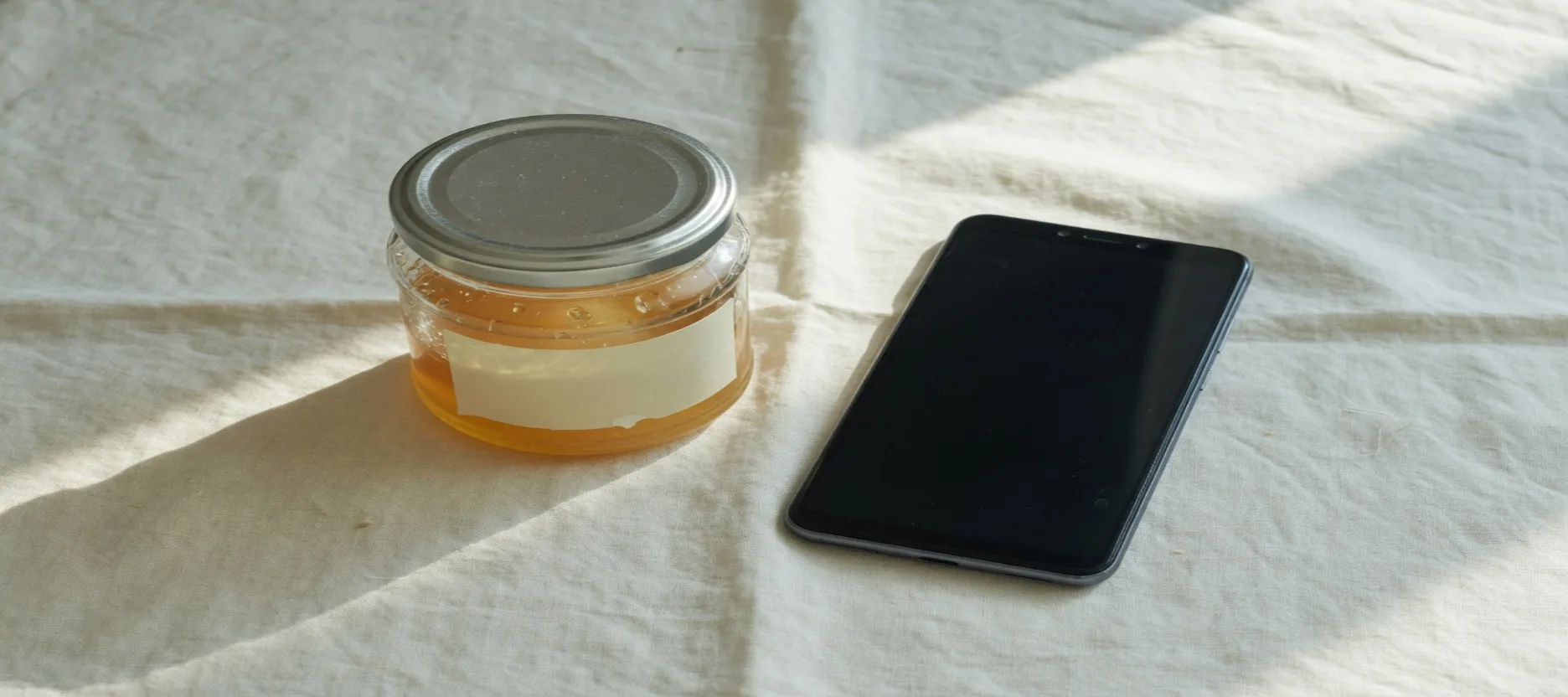
Height did not change, so the lid’s 186 and the screen’s 427 are the source numbers again. Width ×1.5 turns the lid into 392×186 (261 × 1.5 is 391.5, and the edge lands at 392) at x=473, and the screen into 465×427 at x=942. The label becomes 317×122 at x=528. 211 × 1.5 is 316.5. The label is wider and not shorter, which is the whole difference between this file and a 16:9 crop.
When stretch is the wrong first tap
A selfie that still has to look like you, an app icon, a screenshot with UI chrome: those warp first. Crop in Photos, or tap Crop on the same ImageStretcher canvas, then stretch what is left if the slot still does not match. Wallpaper and lock-screen slots are a crop problem more often than a stretch problem, because iOS will trim the image again when you set it.
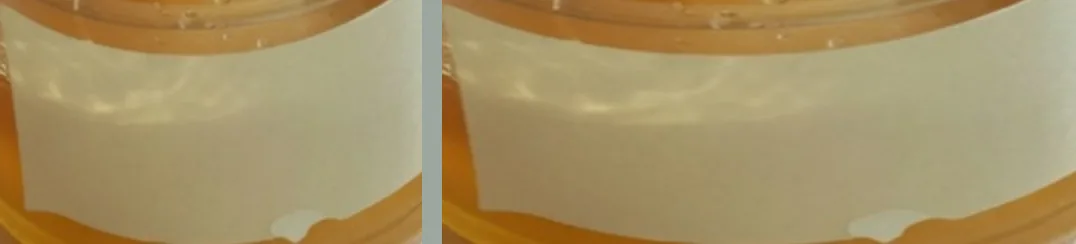
The square on the left is Free with Width 1080 and Height 1080. The square on the right is a 261×261 window parked on the lid, at x=315, y=129, so the label’s first row (y=390) falls just outside.
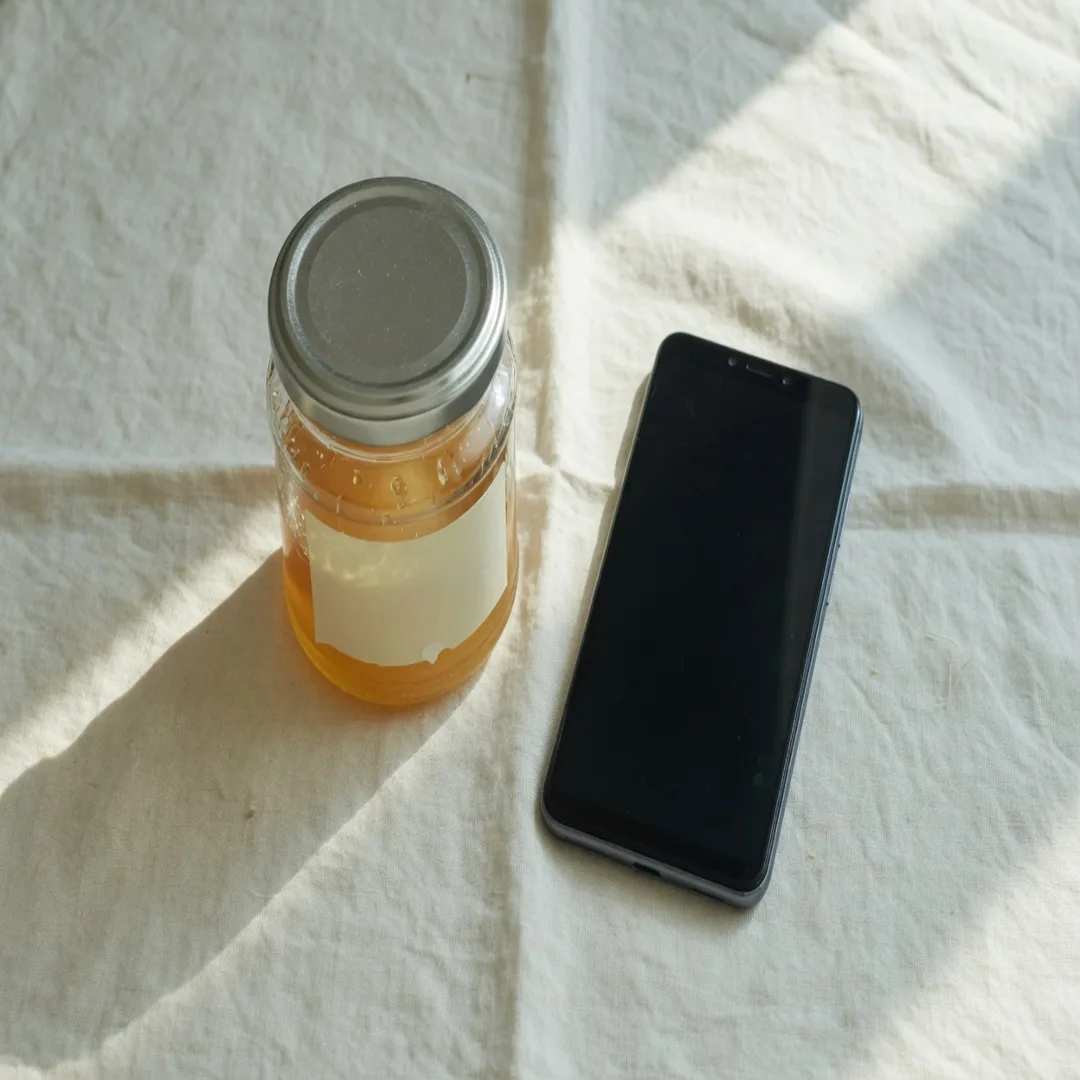

On the stretched square the lid is 226×241. 186 × 1080 / 832 is 241, so the ellipse got taller while the width fell to 226. The label is 183×158 at x=305, y=506, still in the file. The screen is 268×554 at x=544, y=338. On the tight square the lid is the original 261×186, seven pixels below the window’s top, and the label never enters. Keeping the words on the jar means the left file. Keeping the lid at 261×186 means the right file.
Empty bands around a product shot sometimes want more background, not a squeezed original. That is generation. The AI image expander paints extra scene. Try it free, and sign in for monthly credits. Stretch still only remaps the pixels already in the file. Camera-roll shots of people and objects use the same canvas on the free photo stretcher. Keeping the edges while filling a new ratio on any device is how to stretch an image without cropping. This page is the Photos-to-Safari path on iPhone.